
FROM DOWNLOAD TO A WORKING PRINT
Print a QR card people can actually use
Start with the finished task: a guest joins the right network, or a customer reaches the right review page. A readable square is only the first check.
Choose a file for the job
The QR-only PNG is 1024 × 1024 pixels. Use the original download, not a screenshot of the preview. SVG keeps the QR pattern as vector shapes for resizing; a logo or photo inside it remains an embedded raster image. Neither format makes a tiny printed code automatically readable.
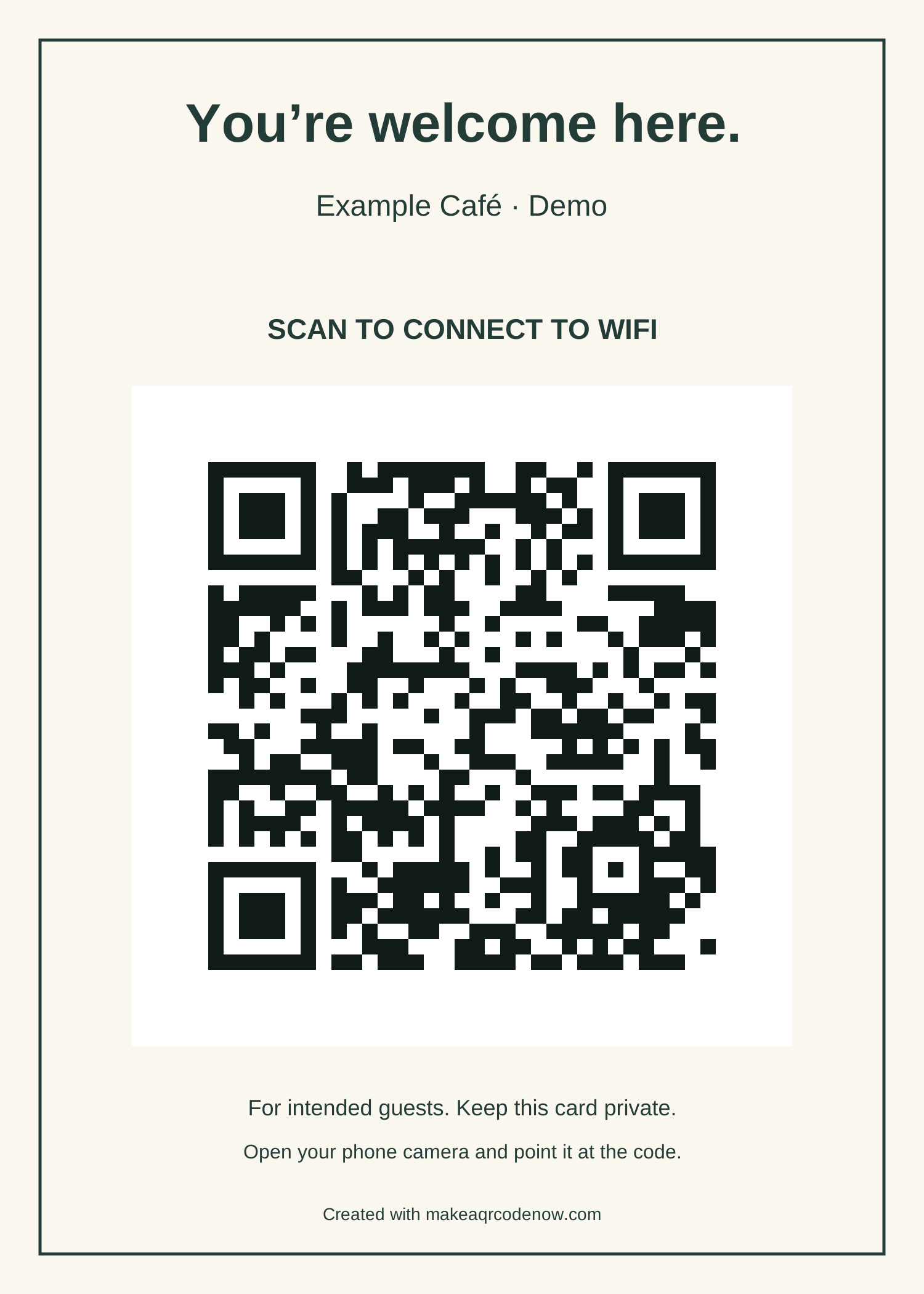
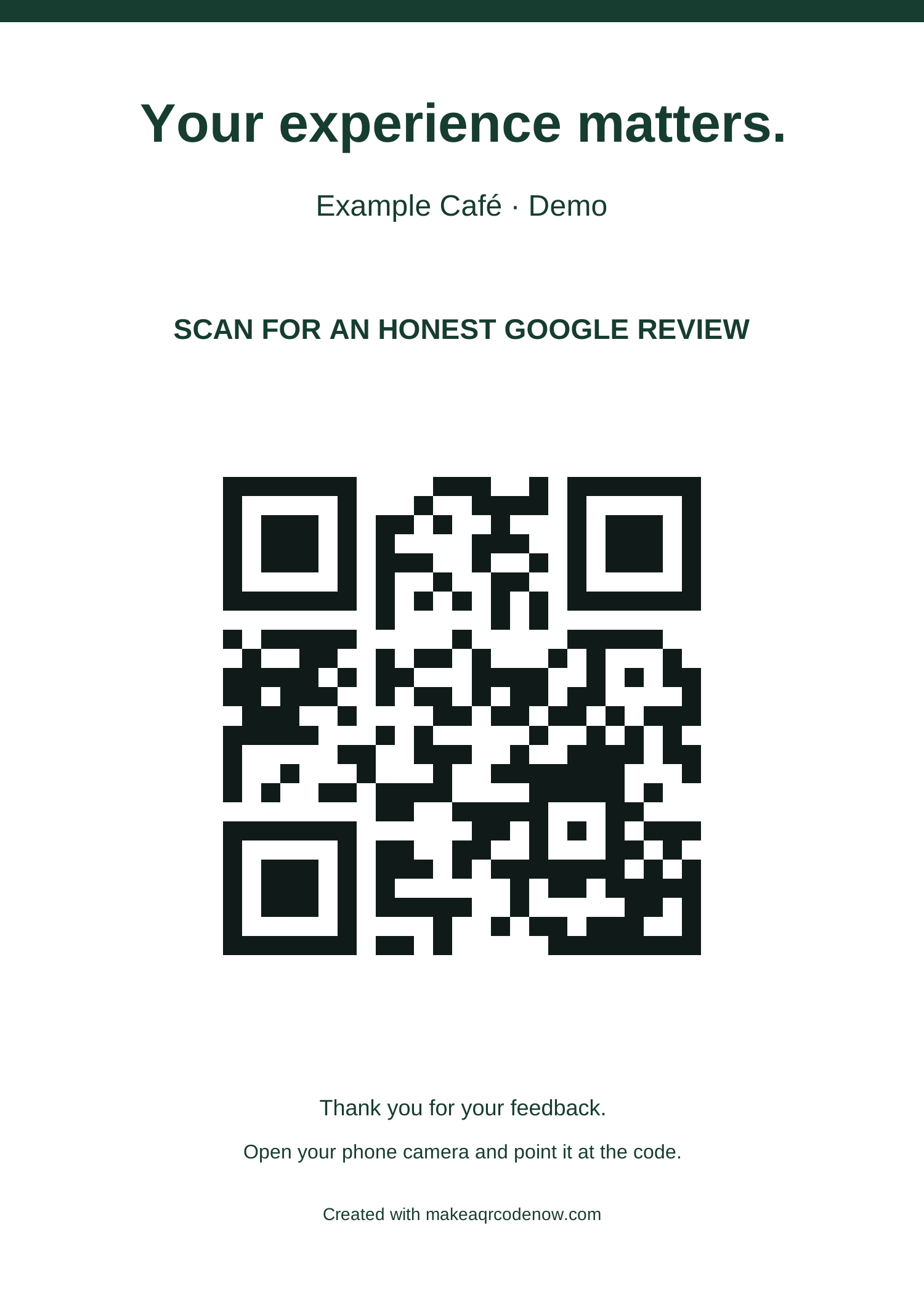
WiFi and Google Review tools also create a 1500 × 2100 pixel card. The QR is placed on a white backing so that changing the card style does not remove its border. Your optional place or business label appears on the card; it does not change the information encoded in the QR.
Print at a known physical size
Generate a card, select its print size, then choose “Print / save PDF”. The browser opens its print dialog. Select the correct printer or Save as PDF, use 100% scale, turn off headers and footers, and check the preview. Choose paper large enough for the card plus the printer’s margins. Browser and printer settings can override the requested size.
| Choice | Card artwork | Example placement |
|---|---|---|
| 5 × 7 inches | 127 × 177.8 mm | A guest-room frame or reception desk |
| Fit within A6 | 105 × 147 mm | A small counter card; artwork keeps its 5:7 ratio |
| Fit within A5 | 148 × 207.2 mm | A larger notice; artwork keeps its 5:7 ratio |
Those are artwork sizes, not claims about a printer’s borderless capability. A6 and A5 sheets are slightly taller than the fitted artwork. The PNG download stays 1500 × 2100 pixels whichever print size you select. If a print shop handles the file, give them the intended physical dimensions and ask them not to crop or stretch it.
Print one proof before ordering a batch. Check it under the lighting and from the distance your visitors will use. Glare from lamination, folds, low contrast, damage and shrinking the artwork can all change the result. Keep the white border around the QR intact.
Add a logo without losing the destination
- Enter and verify the destination or network details first.
- Open “Add a logo or photo”. Choose an example or your own PNG, JPG or WebP, up to 3 MB and 24 million pixels. Processing stays on your device.
- The image is cropped to a square and normalized to a small PNG. Use a simple, recognizable mark; tiny lettering will be difficult to see.
- “Make image black & white” applies grayscale. Turning it off restores the normalized color image.
- Download the finished QR or card and scan that exact result before printing.
With a center image, this generator uses higher QR error correction and verifies that its final raster decodes to the original payload. That is a software check of the image, not a guarantee about every phone, paper or print size. If verification fails, remove the image or shorten the content. Do not cover extra QR areas in another editor after this check.
We do not upload the chosen image or QR fields. Downloaded files intentionally contain the information you encoded and the chosen artwork. Printing hands the file to the printer or PDF destination you select.
If the QR scans but the task fails
| What you see | What to check next |
|---|---|
| Camera does not recognize the square | Try the original file, a larger proof, better light and the plain QR without a logo. Preserve the white margin. |
| A website opens but is unavailable | Open the same URL in a signed-out browser. Check spelling, access permissions and whether the destination still exists. |
| Phone offers WiFi but cannot join | The image was read. Check the exact SSID, password, security type, hidden-network setting and router availability. |
| Google Maps opens without a review form | A general listing share link may have been used. Copy the review-request link from the Business Profile and confirm the correct location. |
A repeatable check before sharing
- Use fictional details while learning the editor. Enter the real destination only when ready; never send us a WiFi password for support.
- Scan the downloaded PNG or SVG, not just the on-screen preview. Confirm the exact destination or action.
- Print the selected card size at 100%. Scan the proof with the devices your guests use.
- For WiFi, use a phone that is not already connected and confirm a successful join. For Google Review, confirm the business name; you do not need to post a review for the test.
- Replace shared copies whenever encoded details change. Static QR contents cannot be edited after printing.
What our checks establish
Our automated checks decode generated PNGs, rasterized SVGs and printable cards back to their expected content. They check that example styles do not populate your fields and that editing details invalidates old results. These checks cover software output, not physical printing or every device.
The owner confirmed iPhone/Safari PNG, SVG and card downloads during earlier acceptance testing. That does not establish WiFi joining, Google sign-in behavior or printed-code compatibility on all phones. Test your own final card; we do not publish a universal device-compatibility claim.